Docs
Approving requests for access roles
How to approve user requests for resources using the JASMIN Accounts Portal
Every service in the JASMIN Accounts Portal represents access to a resource on JASMIN, such as a particular server or Group Workspace. Most of the time, these resources belong to particular projects or groups, and access will only be granted to users involved in that project or group.
Typically, users with a MANAGER or DEPUTY role for a service are people working on the associated project, rather than a member of the JASMIN team. These roles mean that the user can approve applications from other users who want to access that resource, usually colleagues working on the same project.
Pending applications are processed using the Accounts Portal in the browser. This example will demonstrate approving access to a Group Workspace, but the process is the same for other services listed in the Accounts Portal.
Step 1: Sign in into the JASMIN Accounts Portal and select ‘Manage JASMIN services’ to navigate to the JASMIN Services page. On this page, you will see the list of services you have requested or been granted access to.
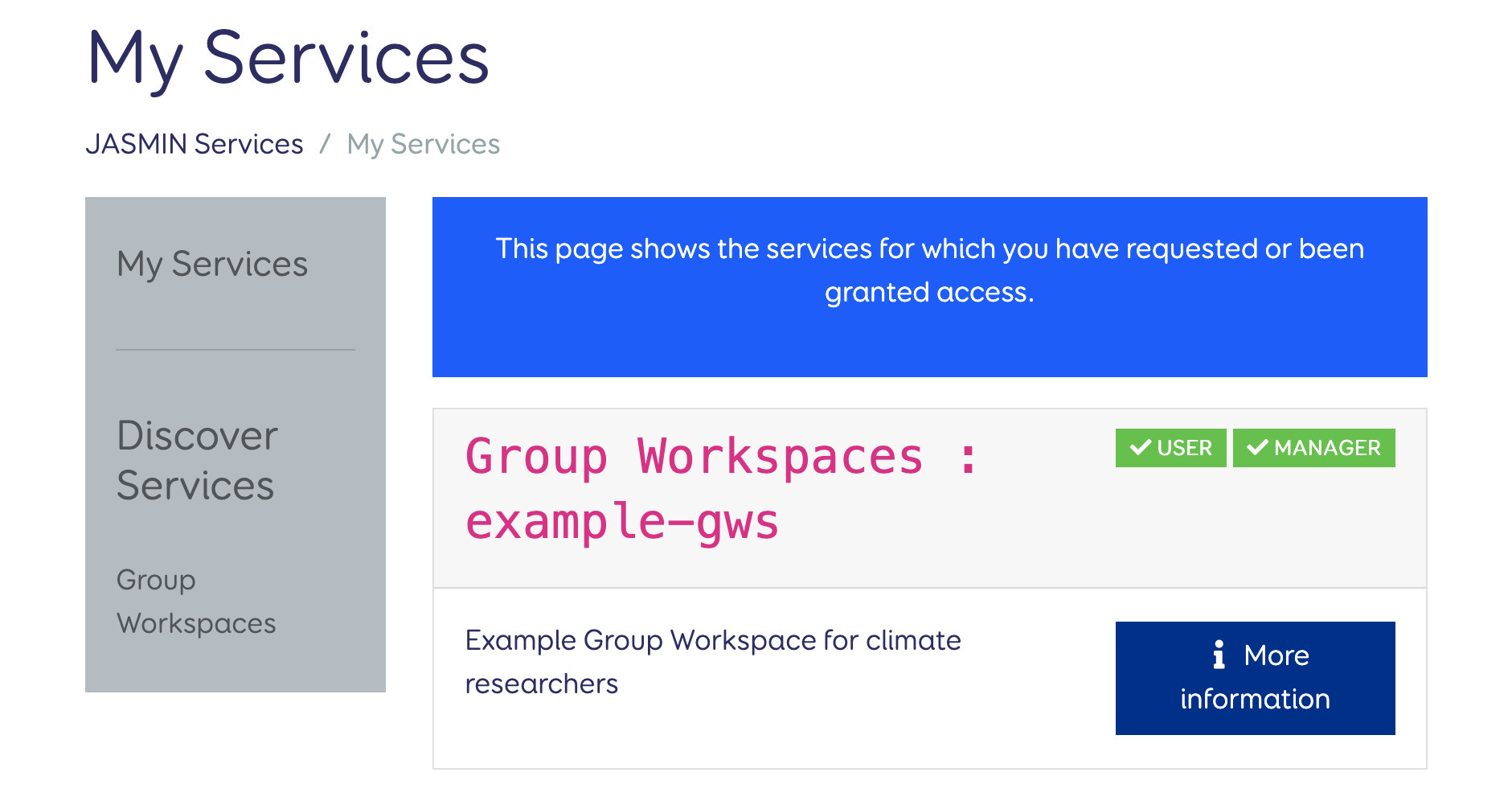
Step 2: In the list of ‘My Services’, scroll to the service you want to process applications for. This should have a label to indicate that you have been granted the MANAGER or DEPUTY role. Click on ‘More information’ to view the service page.
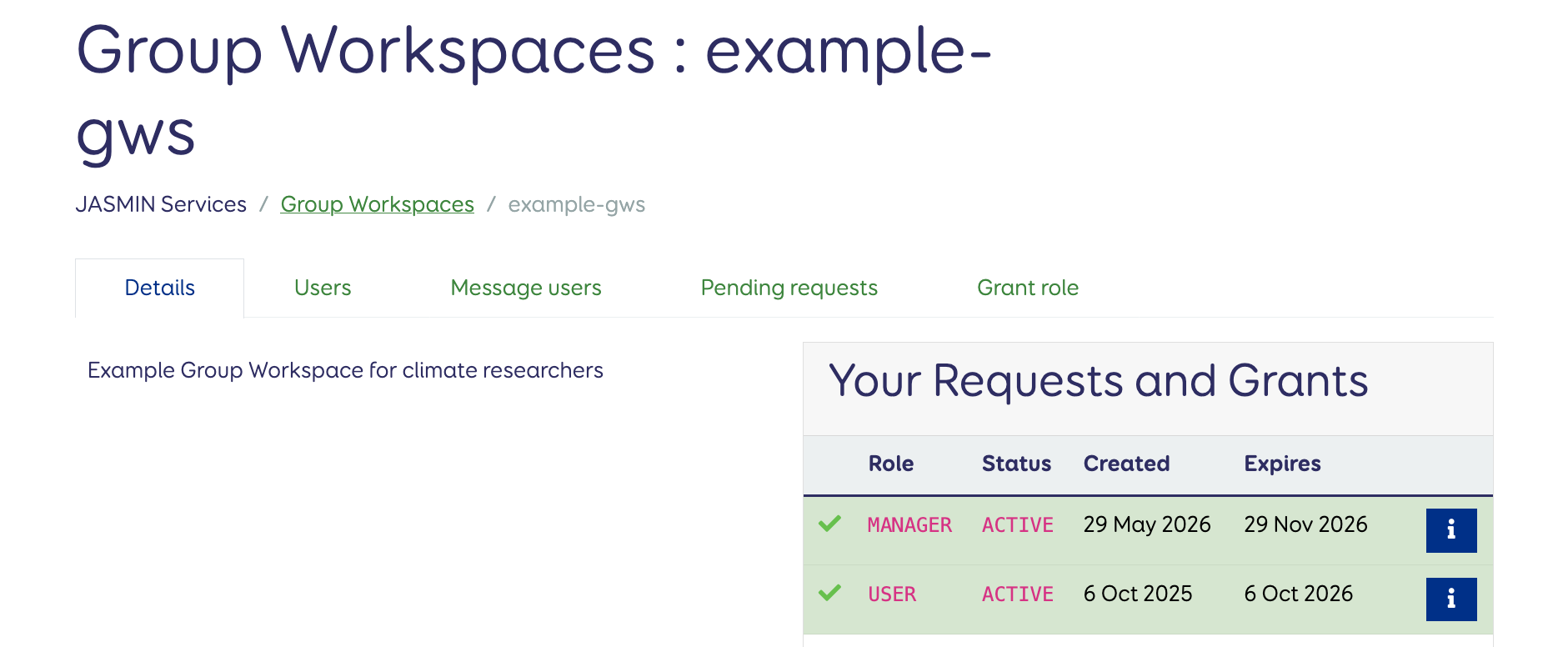
Step 3: Click on the ‘Pending requests’ tab to view the list. The oldest request is at the bottom of the page and the newest is at the top. Click on ‘Make decision’ to view a request.
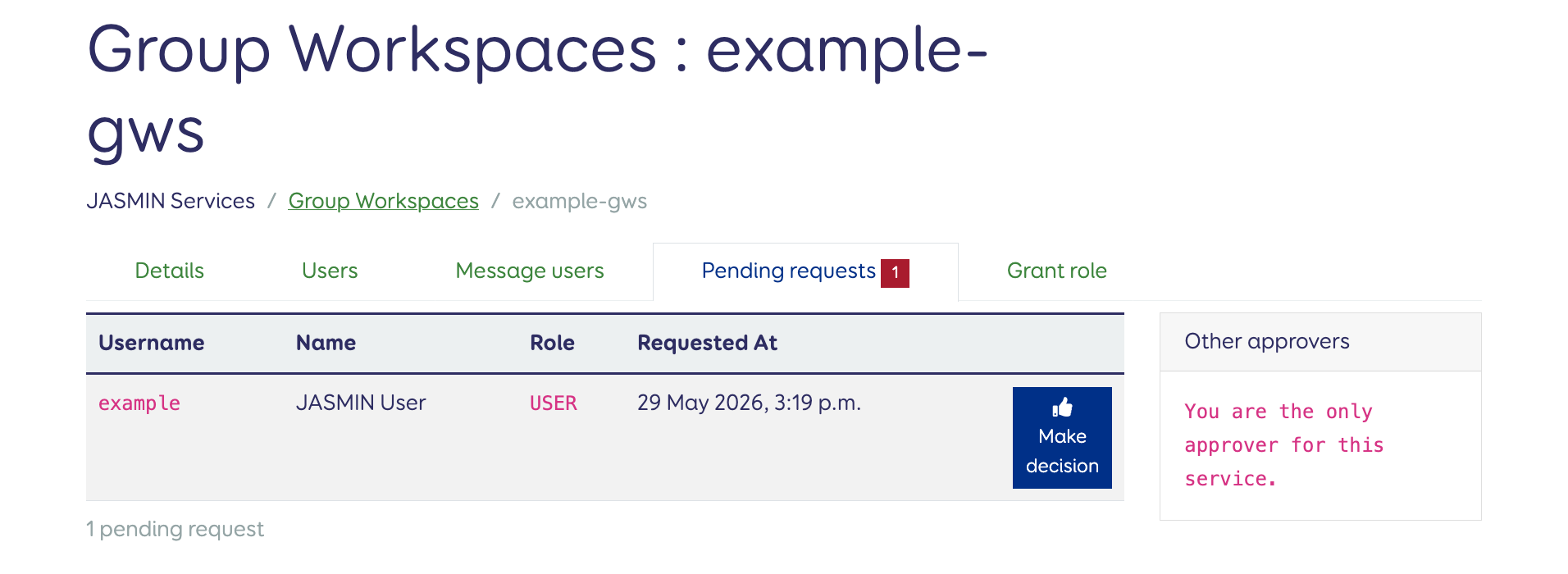
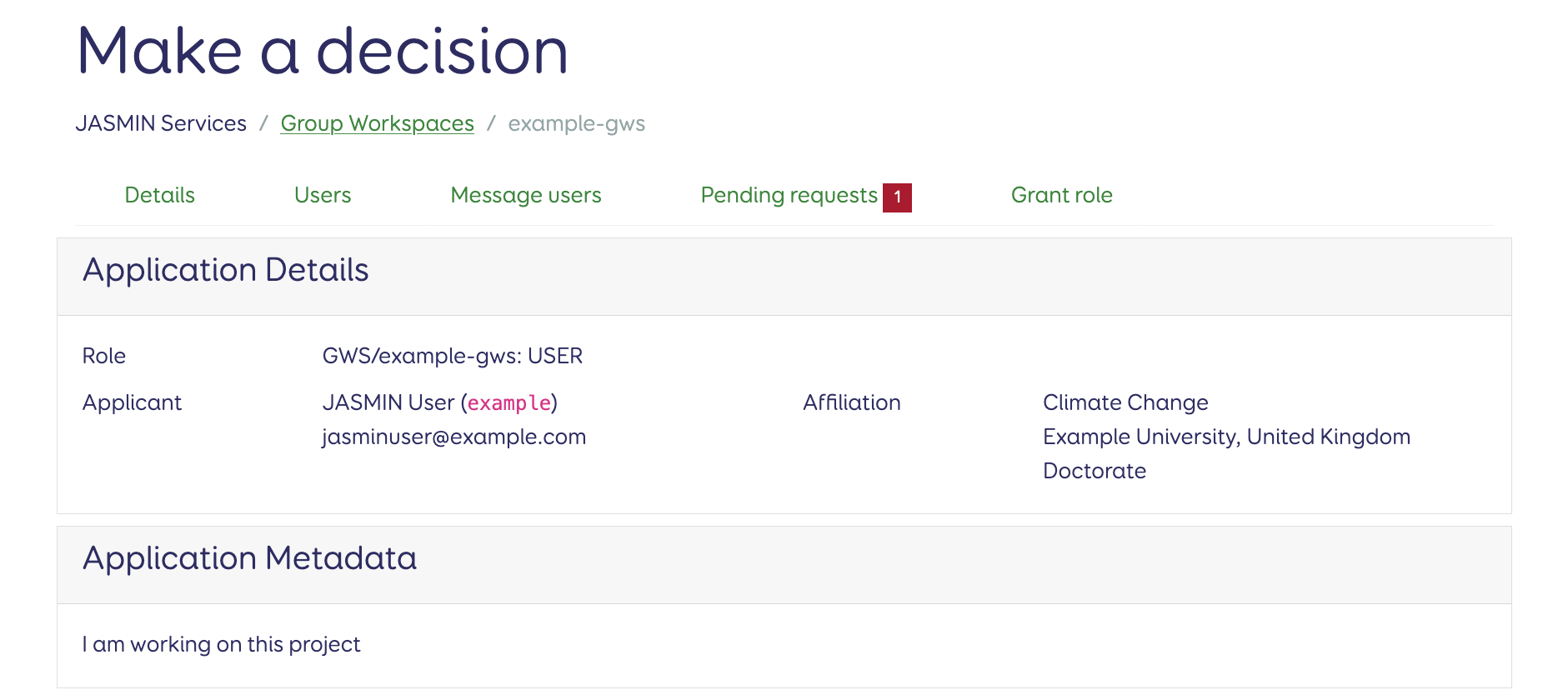
Step 4: After reading the information provided by the user, scroll down to the ‘Decide’ section.
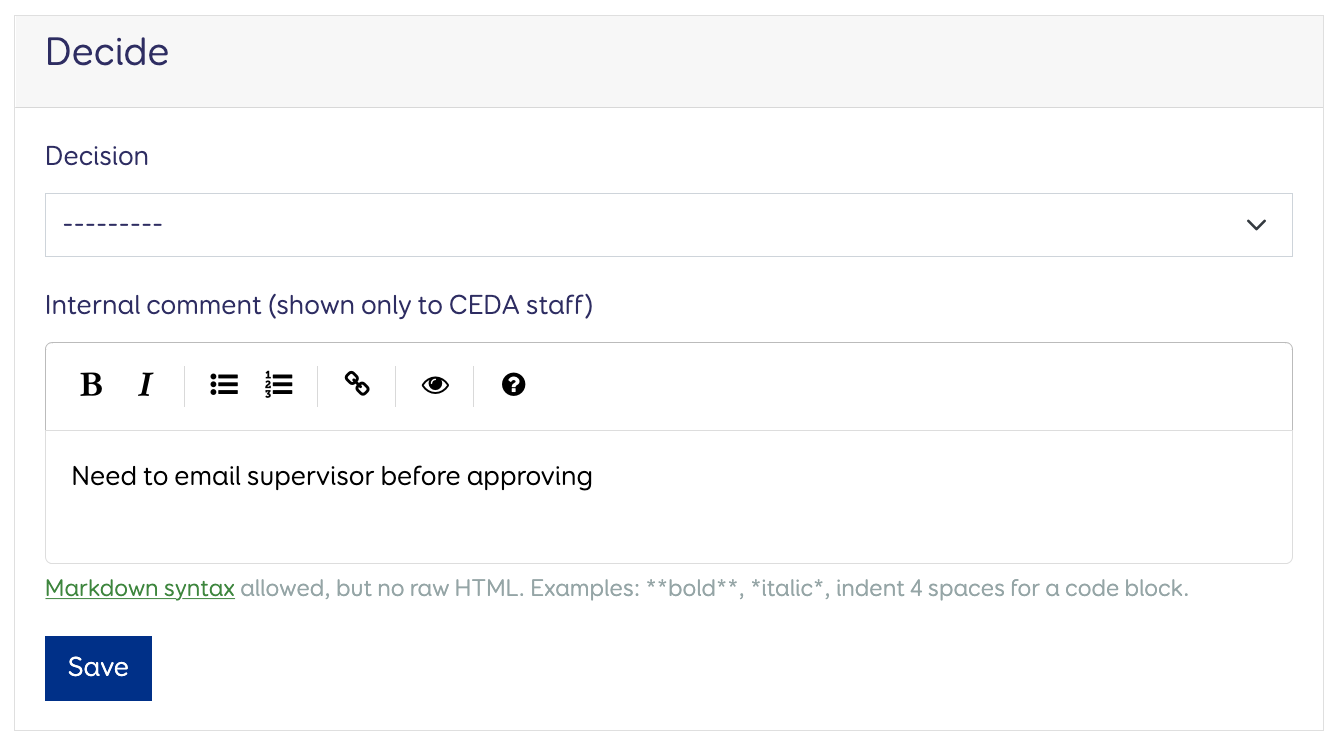
If you aren’t ready to make a decision, you can write a note in the ‘Internal comment’ box without selecting an option from the ‘Decision’ drop down, and click ‘Save’. This makes the comment visible to yourself, other users with the MANAGER or DEPUTY role for the service, and CEDA staff.
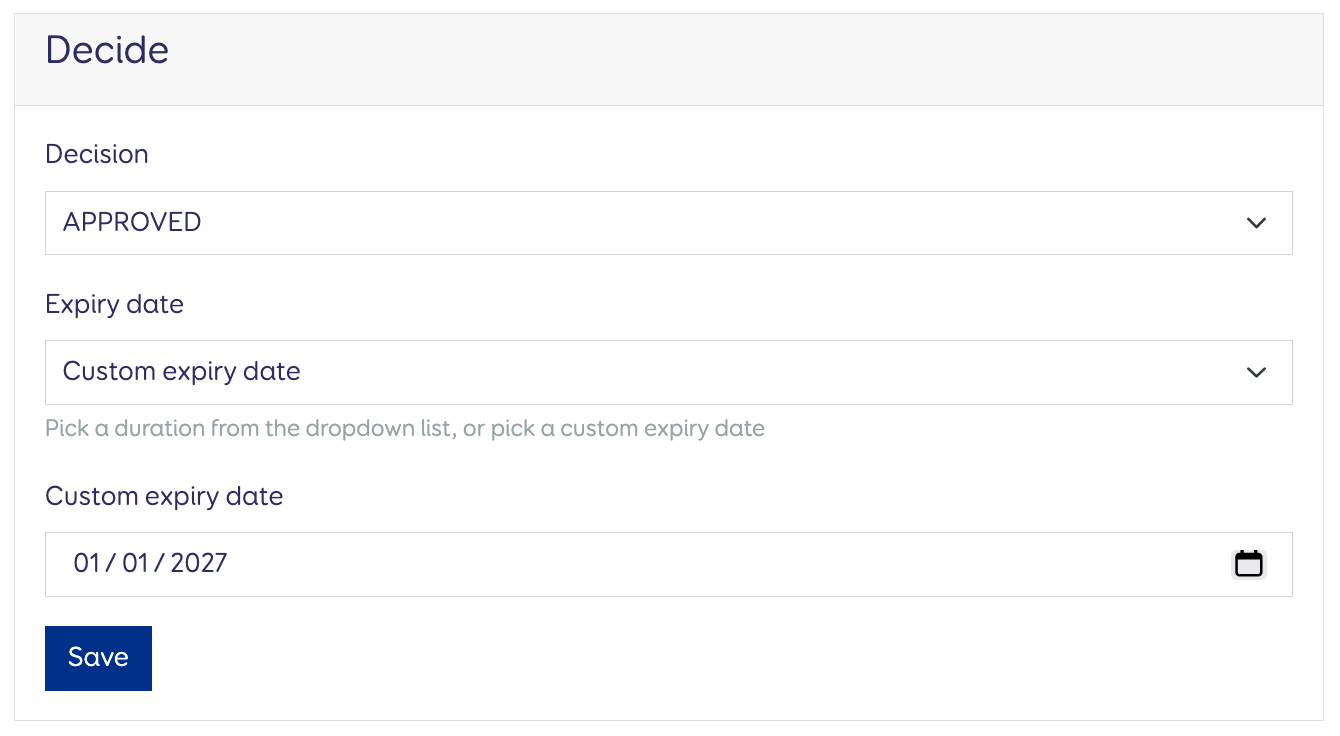
To approve an application, choose ‘APPROVED’ from the ‘Decision’ drop-down menu. This will prompt you to provide an expiry date for this user’s access. If none of the options are suitable, you can also specify a date by choosing ‘Custom expiry date’ from the drop-down menu, and entering your chosen date. After you have chosen an expiry date, click ‘Save’.
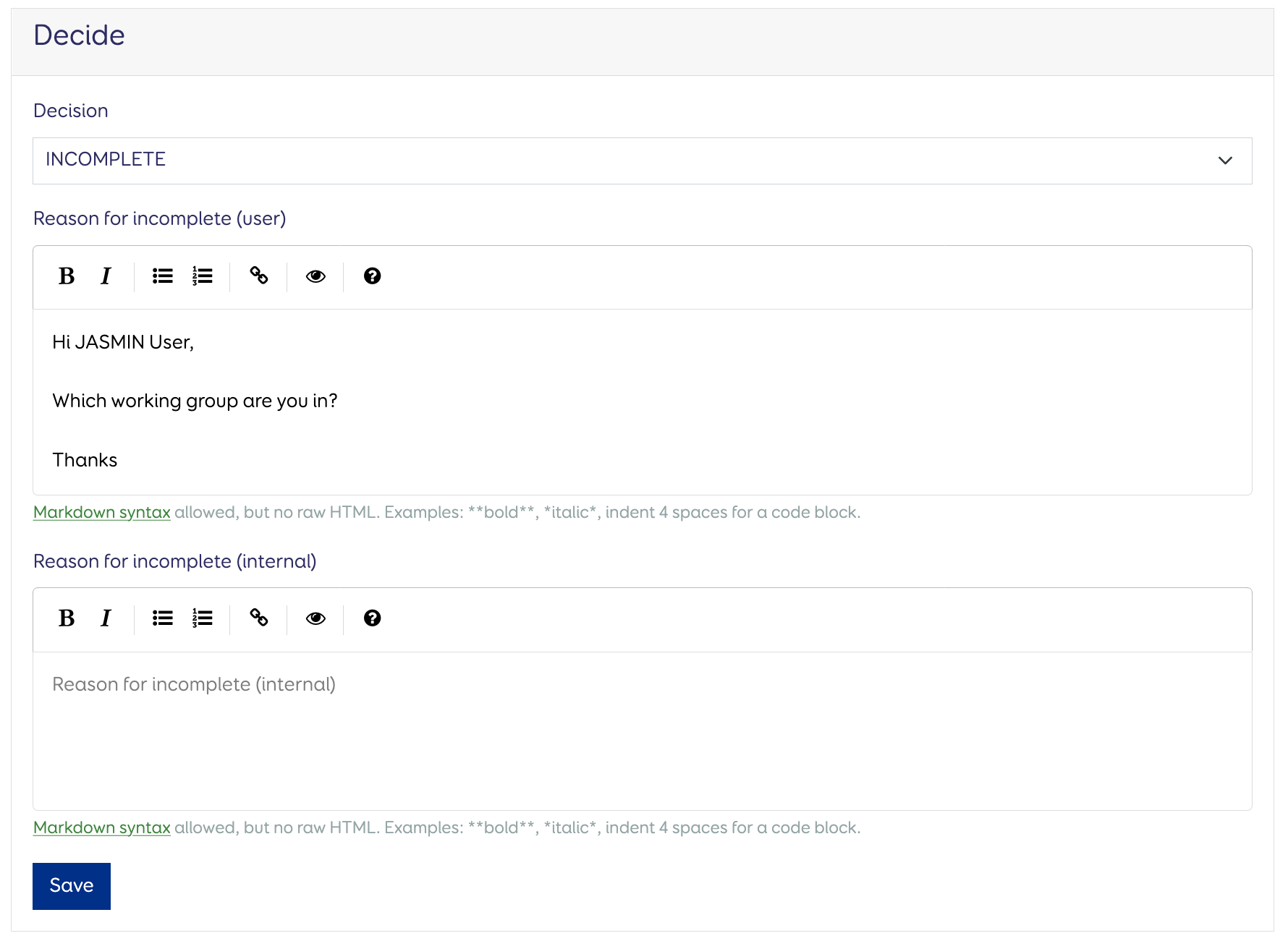
If you would like to send a message to the user before approving their application, such as to request further information needed to make a decision, choose ‘INCOMPLETE’. This will display a free text field where you can type your message to the user, then click ‘Save’ to send it. The user will then have the option to amend and resubmit their application in response to your message.
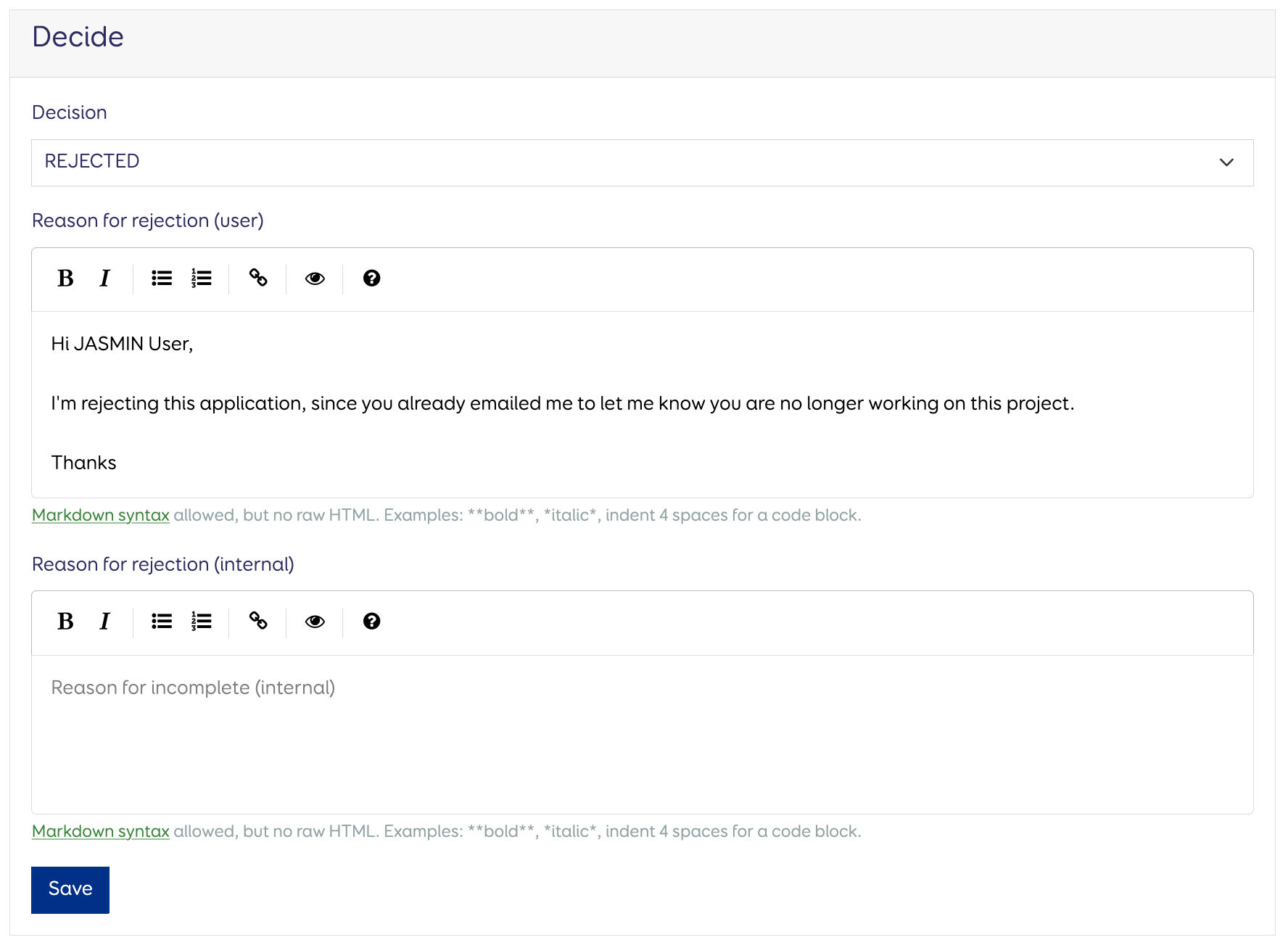
To reject a request, choose ‘REJECTED’ from the ‘Decision’ drop-down menu. This will also display a free text field you can use to explain the decision to the user, but doesn’t give them the option to amend and resubmit their application. Once you have typed your message, click ‘Save’ to close the application.
Additional information
- The Accounts Portal will also send you an email when a new application is made for a service you manage. Clicking the link in these emails will take you directly to that application.
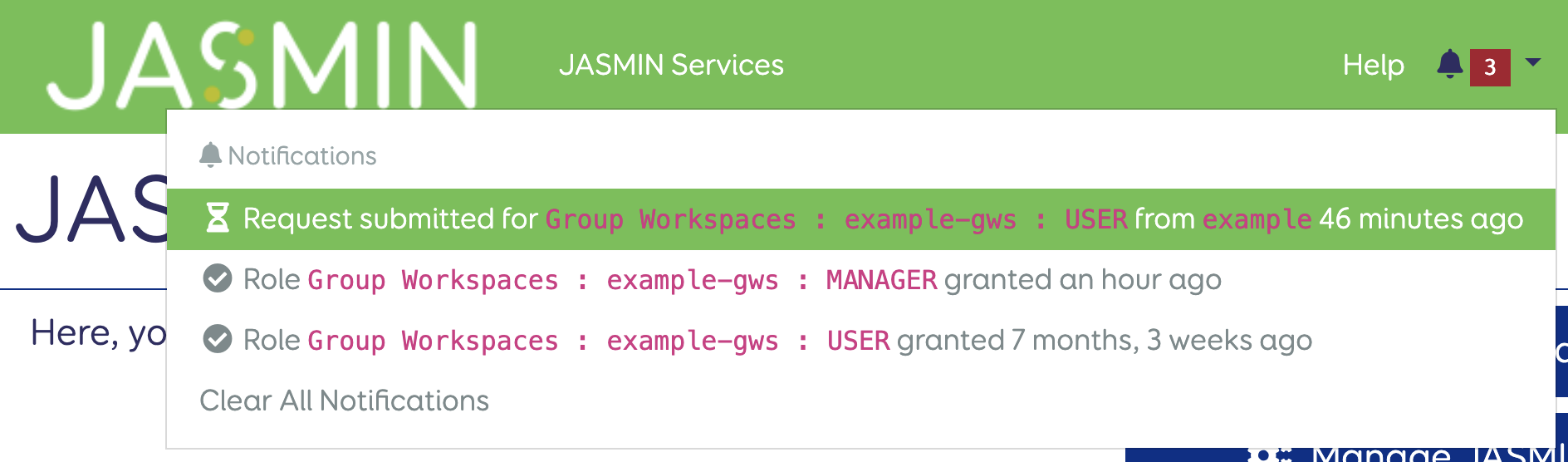
- You will also receive notifications in the menu bar of the Accounts Portal, clicking on the notification will also take you directly to the application:
- To protect other users’ privacy, please do not distribute information from applications or save it to your own computer, as in the JASMIN Terms and Conditions