Docs
JASMIN Object Store Portal
JASMIN Object Store Portal
In order to more easily manage keys and bucket permissions, JASMIN provides the JASMIN Object Store Portal. . This portal can be used to create and delete key pairs for accessing an object store which a user has access to (for whicih they have been given access through the JASMIN Accounts Portal). It can also be used to create, edit and remove access permissions for a bucjet which a user has access to. Note that a tenancy admin will have access to all of the buckets to manage the permissions and can do so on behalf of users.
Creating an access key and secret
Authentication with the object store uses an access key and secret that are separate to your JASMIN username and password. You can generate keys and manage bucket permissions through the JASMIN Object Store Portal.
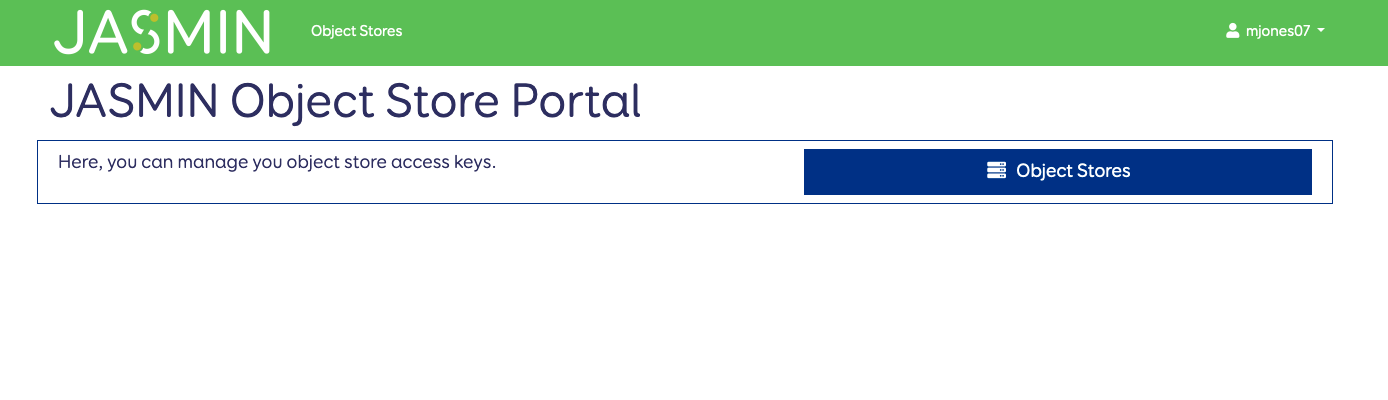
You can log in with your JASMIN username and password. You can then click on the “Object Stores” button on the right. This will present you with the list of object store tenancies that you have access to. If you don’t see an object store tenancy that you expect to, please check you have access in the JASMIN Accounts Portal . If you have access in the Accounts Portal, but not in the Object Store Portal then please email the helpdesk.

The URL for the object store tenancy is also presented here for convenience. You can click on the “Manage Object Store” button to manage you keys and buckets. This will ask you to confirm your JASMIN password.
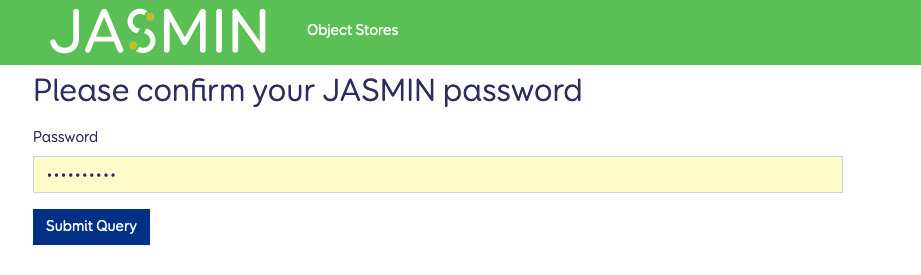
You will then be presented with the following page.
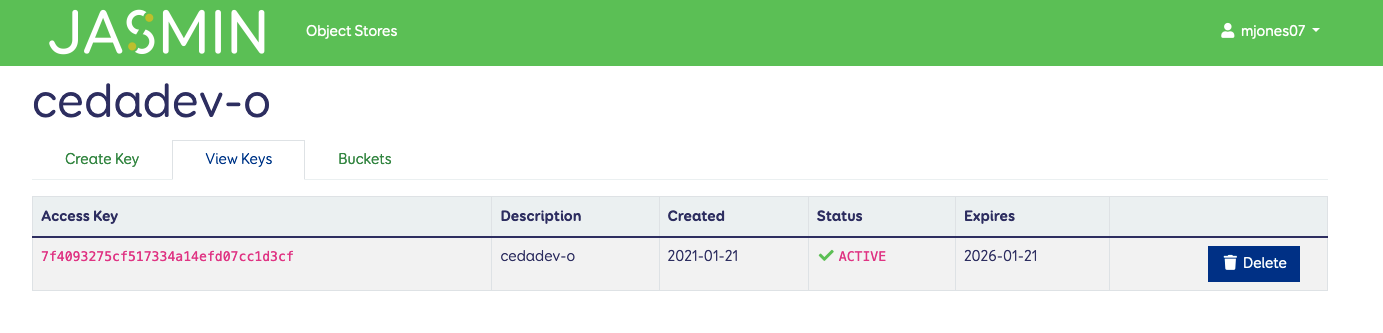
From this page you can view your existing keys, and delete them if you require. You can also use the “Create Key” tab on the left.
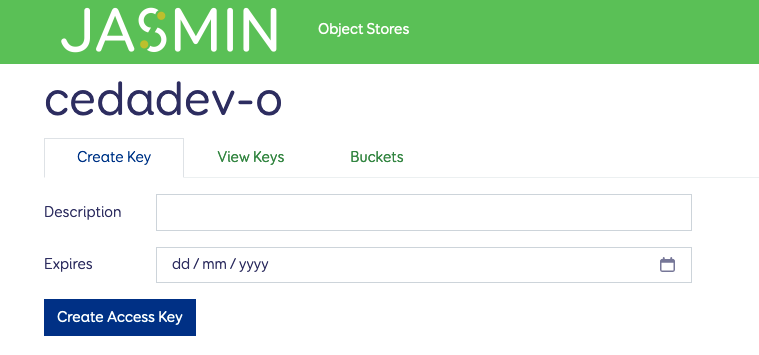
You need to name the key and enter an expiry date for it. This will then present you with a pop-up with details on your access key and secret key. This is the only time your secret key will visible, so save it immediately in a secure password manager.
Managing bucket permissions
You can also manage the permissions on buckets using the “Buckets” tab from this page. This allows you to manage the access policies for your buckets without using the S3 API or the Swarm portal.
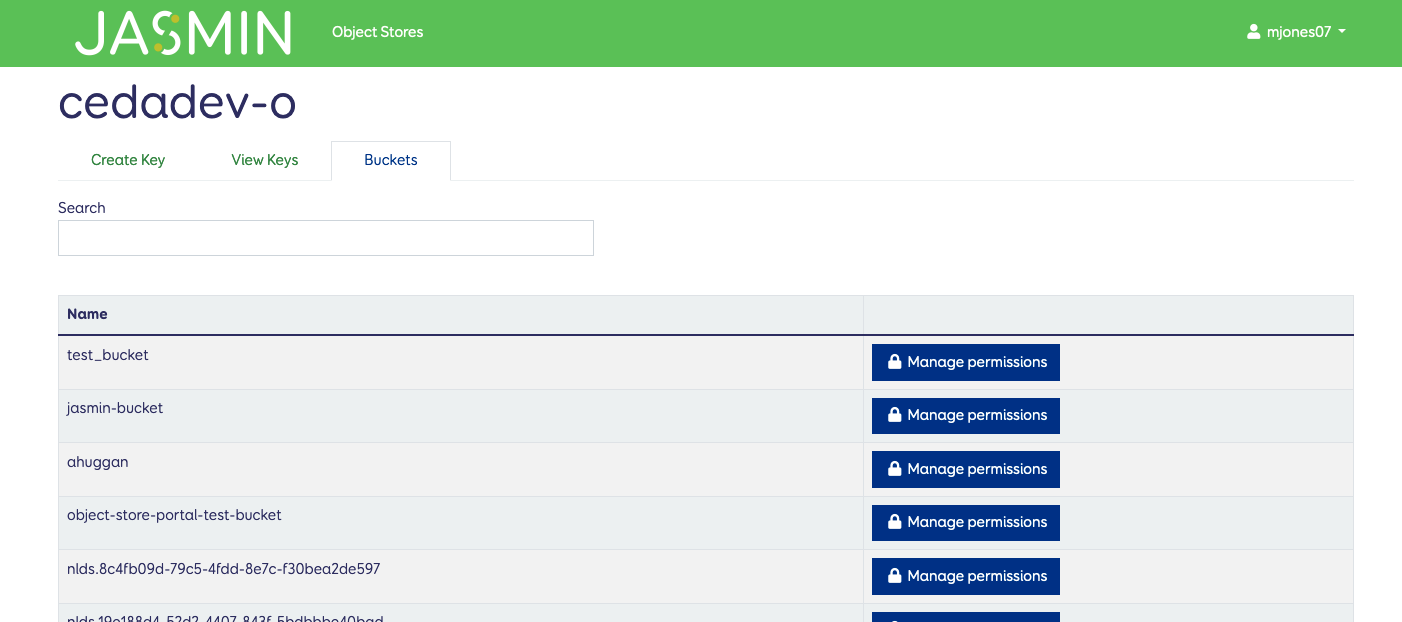
Click on the “Manage permissions” button for a bucket to add or change access policies for that bucket.
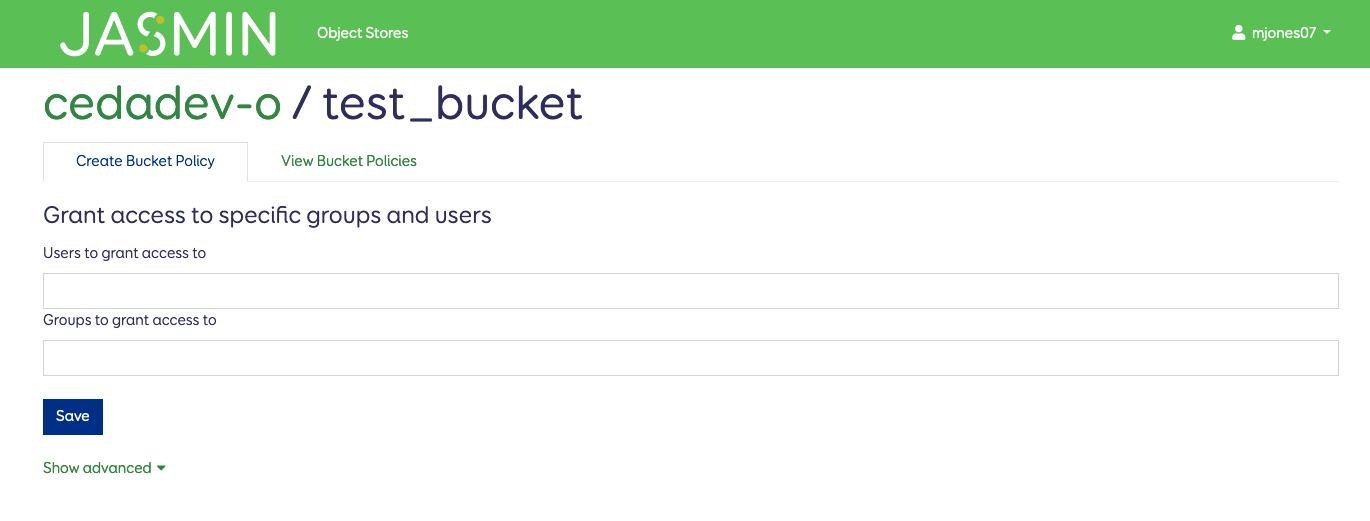
By default this lets you grant access to specific JASMIN Users and/or groups (these are LDAP groups and you might need to request that one is created for you if you require a subgroup for your tenancy).
All tenancies have the LDAP group <tenancy-name-o>-members (e.g. cedadev-o-members) which they can use to give access to all members of that tenancy. Note that other users still need their own key to access data this way. You could also allow read-only access to other members of the tenancy using the advanced tab.
The advanced tab gives you the same options as available through the Swarm portal - including making buckets publicly accessible.
Once done, hit the save to add the policy to the bucket. You can edit or delete permissions from that bucket through the “View Bucket Policies” tab.