Docs
Legacy Content for the JASMIN Object Store
Legacy Content for the JASMIN Object Store
Legacy method for key creation
This is the old way of creating keys which still works, but the new way above is accessible outside JASMIN on the public internet.
You can generate an access key and secret using the Caringo portal.
Authentication with the object store uses an access key and secret that are separate to your JASMIN username and password. You can generate an access key and secret using the Caringo portal. This portal is not currently available outside of JASMIN - you will need to use a graphical session on JASMIN to access a Firefox browser running on a JASMIN system.
The recommended way to do this is using the
NX Graphical Desktop
service. You can start Firefox from
the “Activities” menu once you have logged in to your graphical desktop on one
of the nx-login* servers (so no need to make an onward connection to a sci
server).
An alternative option is to using X11 Forwarding on your SSH connection. You
need to do this on one of the nx* servers (not the sci servers as previously)
because this is where firefox is now installed:
ssh -X <user>@nx1.jasmin.ac.uk firefox(try -Y if -X does not work for you).
Once you have Firefox open, navigate to
http://my-os-tenancy-o.s3.jc.rl.ac.uk:81/_admin/portalbut replace my-os-tenancy-o with your tenancy name.
You will see a login screen where you should enter your JASMIN username and password:
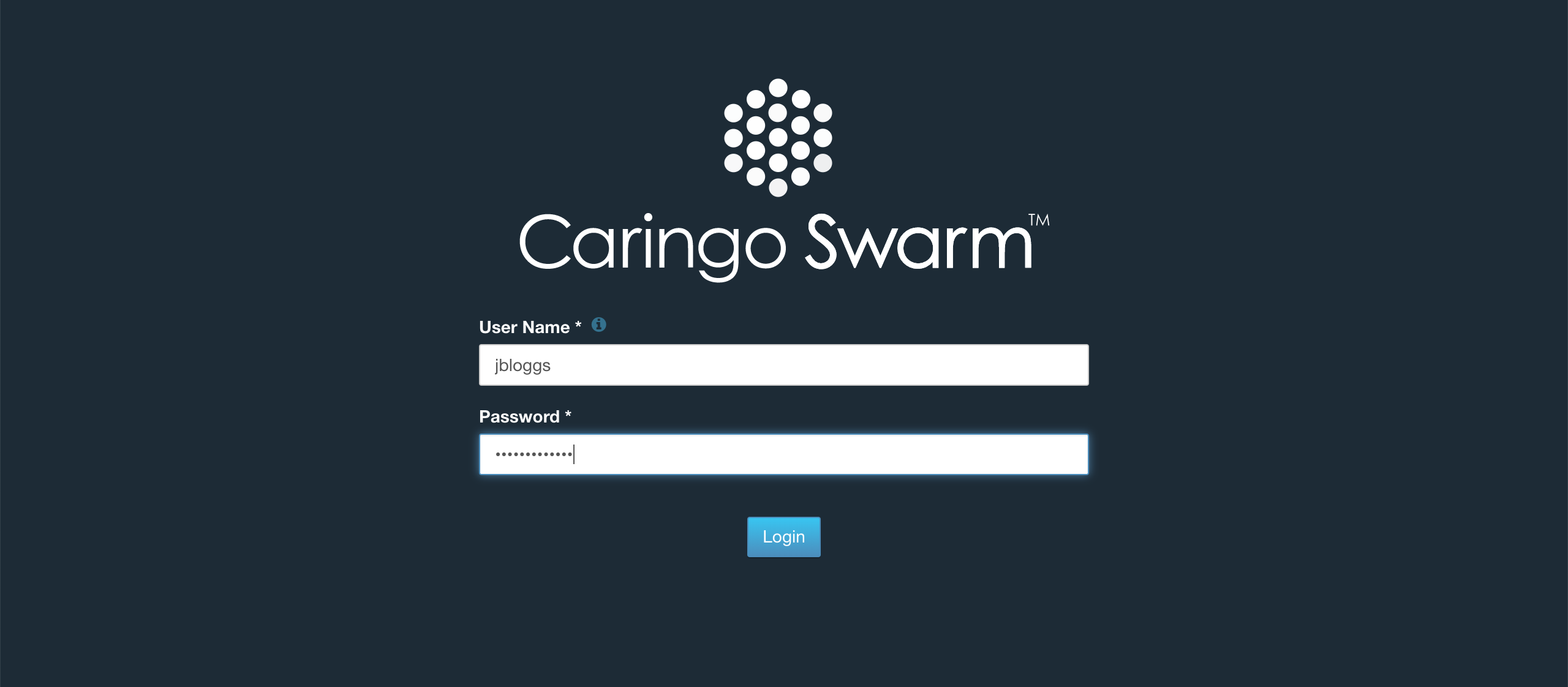
If you receive a “HTTP ERROR 500 java…” error, it is likely that you haven’t added the port (81) to the address.
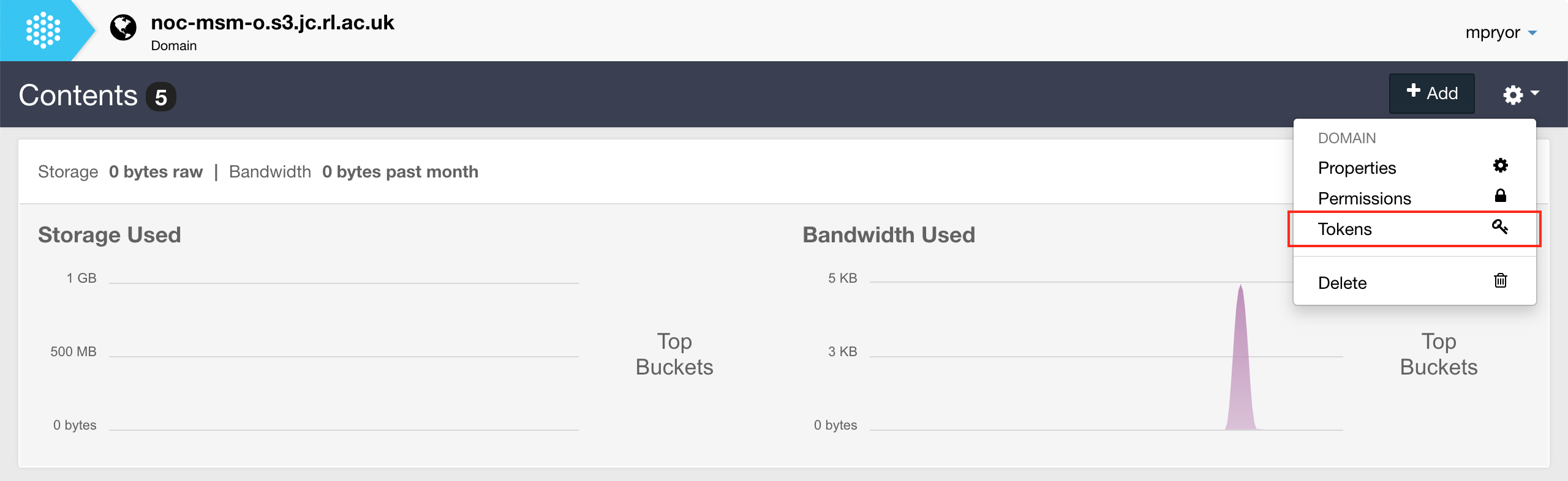
Upon successfully entering the username and password of a user who belongs to the tenancy, you will see a dashboard. To create an access key and secret, click on the cog icon and select “Tokens”:
On the tokens page, click “Add”:
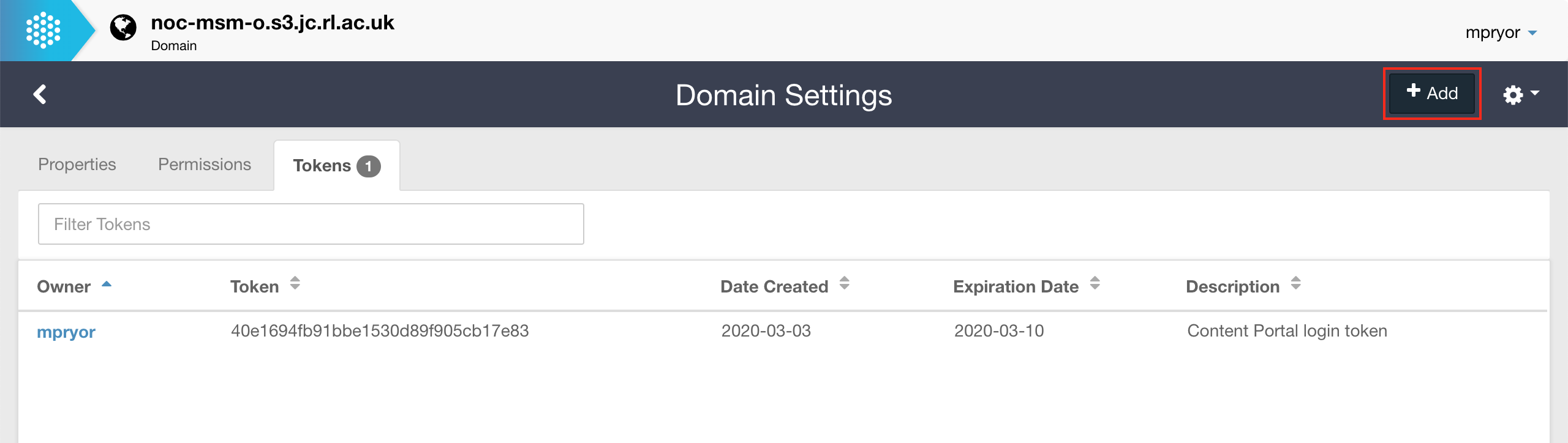
In the dialogue that pops up, enter a description for the token and set an expiration date. Make sure to click “S3 Secret Key” - this will expose an additional field containing the secret key. Make sure you copy this and store it somewhere safe - you will not be able to see it again! This value will be used whenever the “S3 secret key” is required.

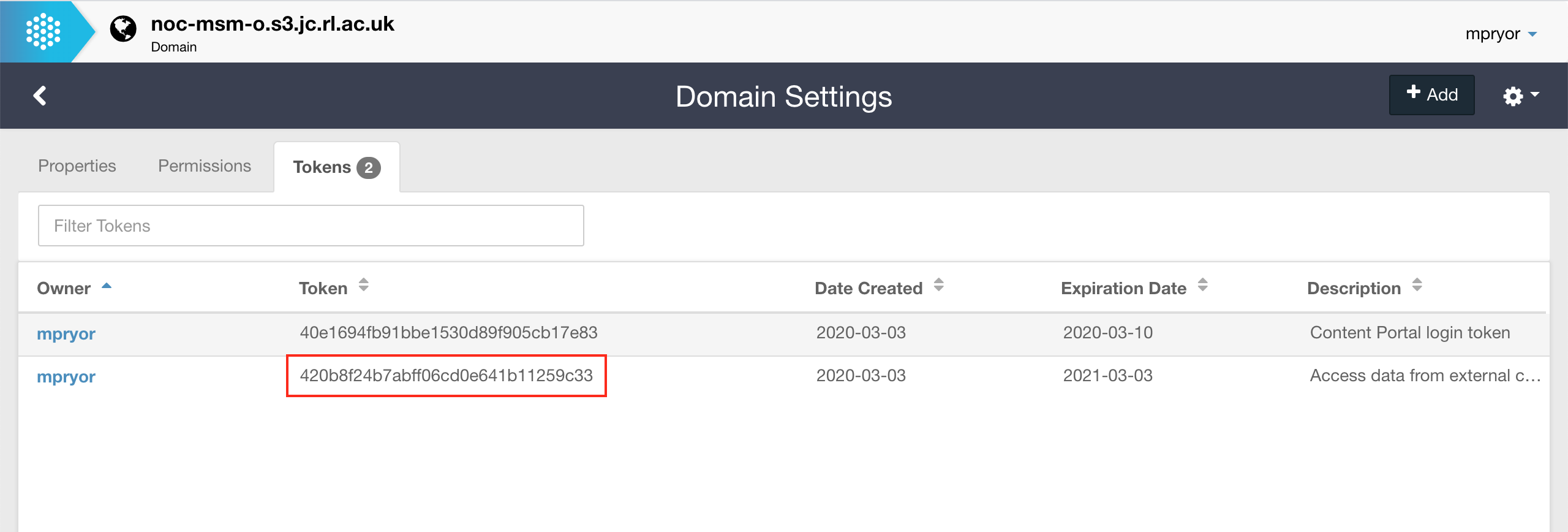
Once the token is created, it will appear in the list. The “Token” should be used whenever the “S3 access key” is required:
Using the MinIO client
Note that the MinIO client is no longer under maintenance.
The MinIO Client is a command line tool to connect to object stores (among
other types of file storage) and interface with it as you would with a UNIX
filesystem. As such, many of the UNIX file management commands found in
standard installations of the OS are found within this client ( ls, cat,
cp, rm for example).
There are a number of ways to install this client as shown in the quickstart guide . Methods include: docker, Homebrew for macOS, wget for Linux and instructions for Windows. Follow these steps to get the client installed on the relevant system.
MinIO Client is not installed on JASMIN, but users can download and install it
to their own user space, following the instructions for “64-bit Intel” (linux-
amd64) in the MinIO quickstart guide. Below is an example to install it into
the bin directory in your user space
mkdir ~/bin
wget https://dl.min.io/client/mc/release/linux-amd64/mc ~/bin
chmod u+x ~/bin/mc
You can then add the ~/bin directory to the PATH environment variable in
your ~/.bashrc file to allow mc to be accessed from anywhere on JASMIN.
# User specific aliases and functions
PATH=$PATH:$HOME/bin
To configure the client with the JASMIN object store, create an access key and secret as documented above and insert them into the command:
mc config host add [ALIAS] [S3-ENDPOINT] [TOKEN] [S3 SECRET KEY]The ALIAS is the name you’ll reference the object store when using the client. To demonstrate, if the alias was set to “jasmin-store”, displaying a specific bucket in the object store would be done in the following way:
mc ls jasmin-store/my-bucketThe commands available in the client are documented in the quickstart guide (linked above). Copying an object from one place to another is very similar to a UNIX filesystem:
mc cp jasmin-store/my-bucket/object-1 jasmin-store/different-bucket/