Docs
Globus transfers with JASMIN
Globus transfers with JASMIN
This article describes how to do data transfers to and from JASMIN using Globus , an online data transfer service designed specifically for moving large datasets between research institutions.
For a more general introduction to the Globus transfer service:
- See Globus’ own tutorial “how to log in and transfer files with Globus”
Key points
- Users now interact with collections in Globus
- Please use
“JASMIN Default Collection”
with ID
a2f53b7f-1b4e-4dce-9b7c-349ae760fee0 - To authenticate with that collection, you are redirected to the JASMIN Accounts Portal to link your Globus identity with your JASMIN account.
- The default lifetime of the authentication with that collection is 30 days. After this, you may need to re-authenticate.
- Please use
“JASMIN Default Collection”
with ID
- Consent needs to be granted at a number of points in the process to allow the Globus service to carry out actions on your behalf.
The following examples show you how to authenticate with the JASMIN Default Collection and list the contents of your home directory. The following file systems are also available via this collection:
| File system | Access |
|---|---|
$HOME (/home/users/<username>) |
Read-write |
/gws (group workspaces) |
Read-write |
/work/scratch-* (scratch volumes) |
Read-write |
/work/xfc (transfer cache) |
Read-write |
/badc (CEDA Archive) |
Read-only |
/neodc (CEDA Archive) |
Read-only |
List your home directory using the web app
1. Navigate to https://app.globus.org
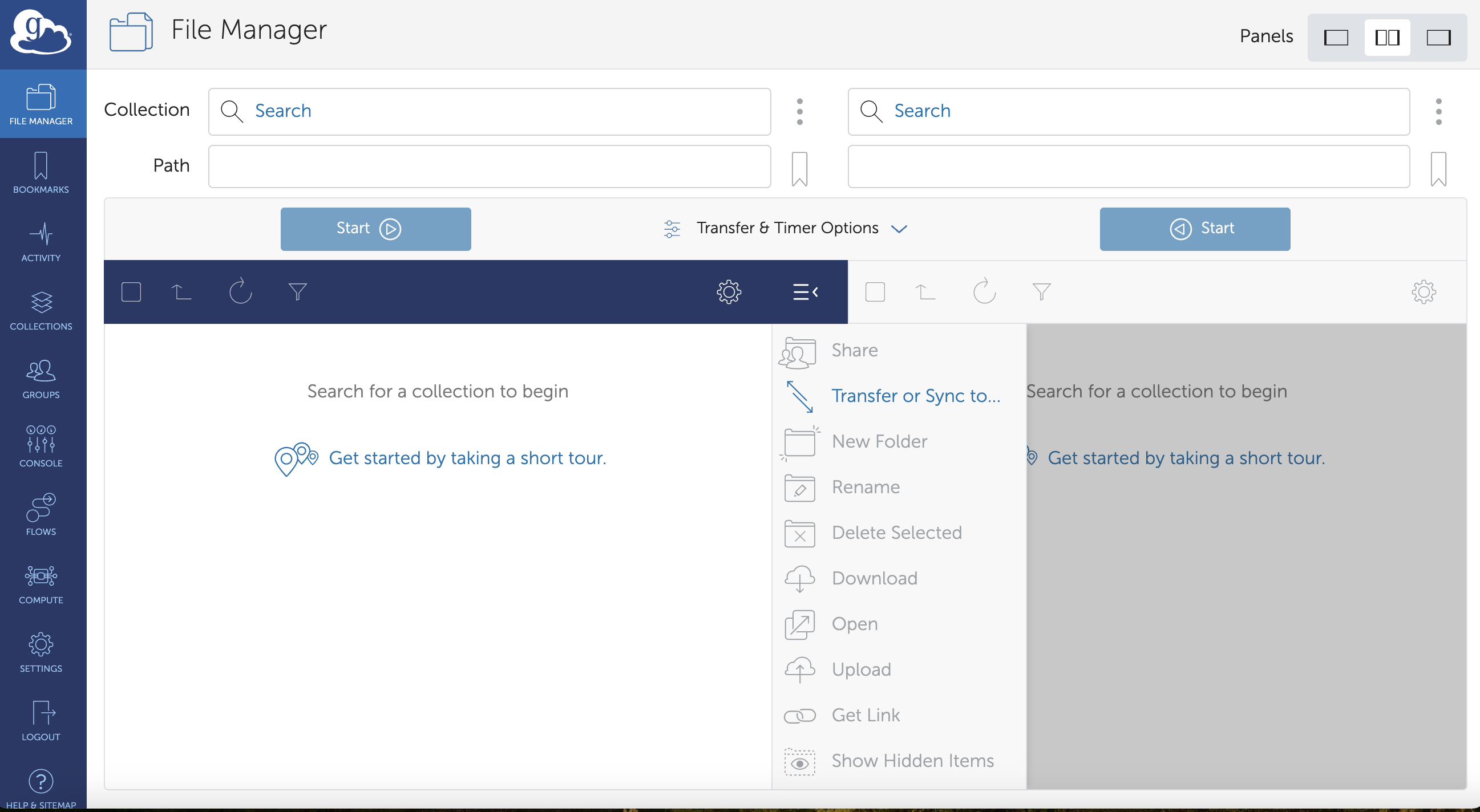
2. Log in with your Globus identity. Normally, this is an identity associated with your home institution: you can create this during the login process using the drop-down list of institutions. It could also be a globusid.org or other identity. Once you are logged in, you should see the Globus File Manager app:
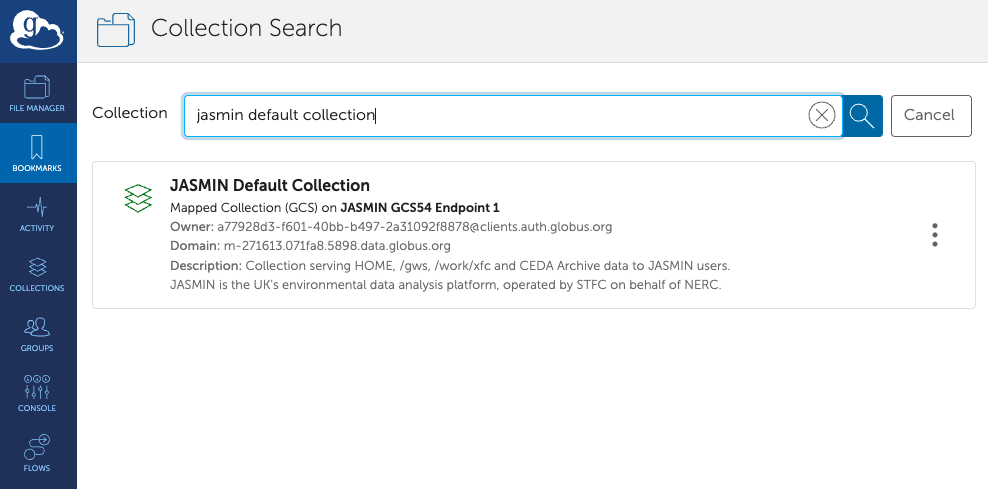
3. In File Manager, use the search tool to search for “JASMIN Default Collection”. Select it.
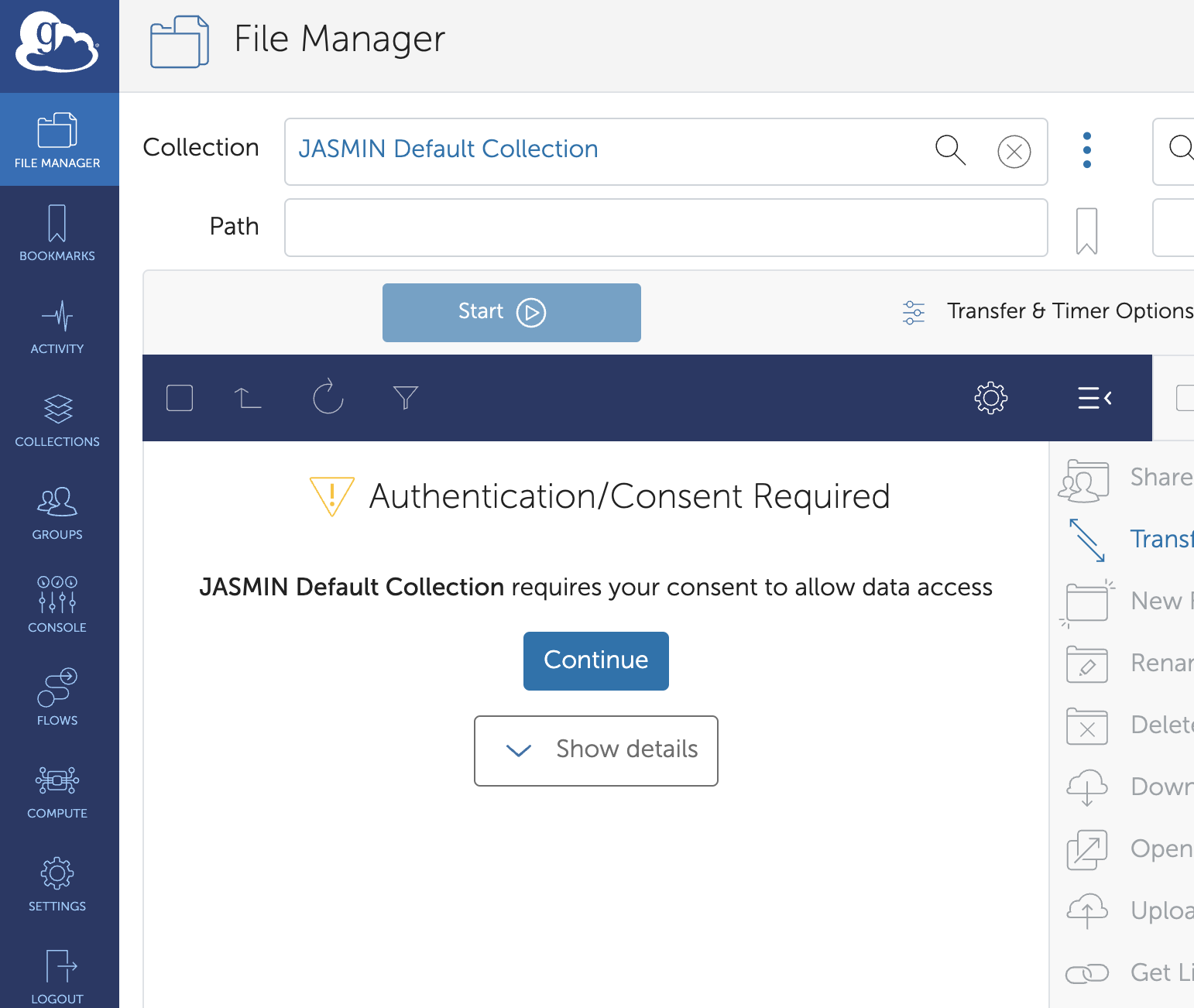
4. In the transfer pane, you are told that Authentication/Consent is required. Click Continue.
5. Click the link to use the JASMIN Accounts Portal OIDC server to link your JASMIN identity
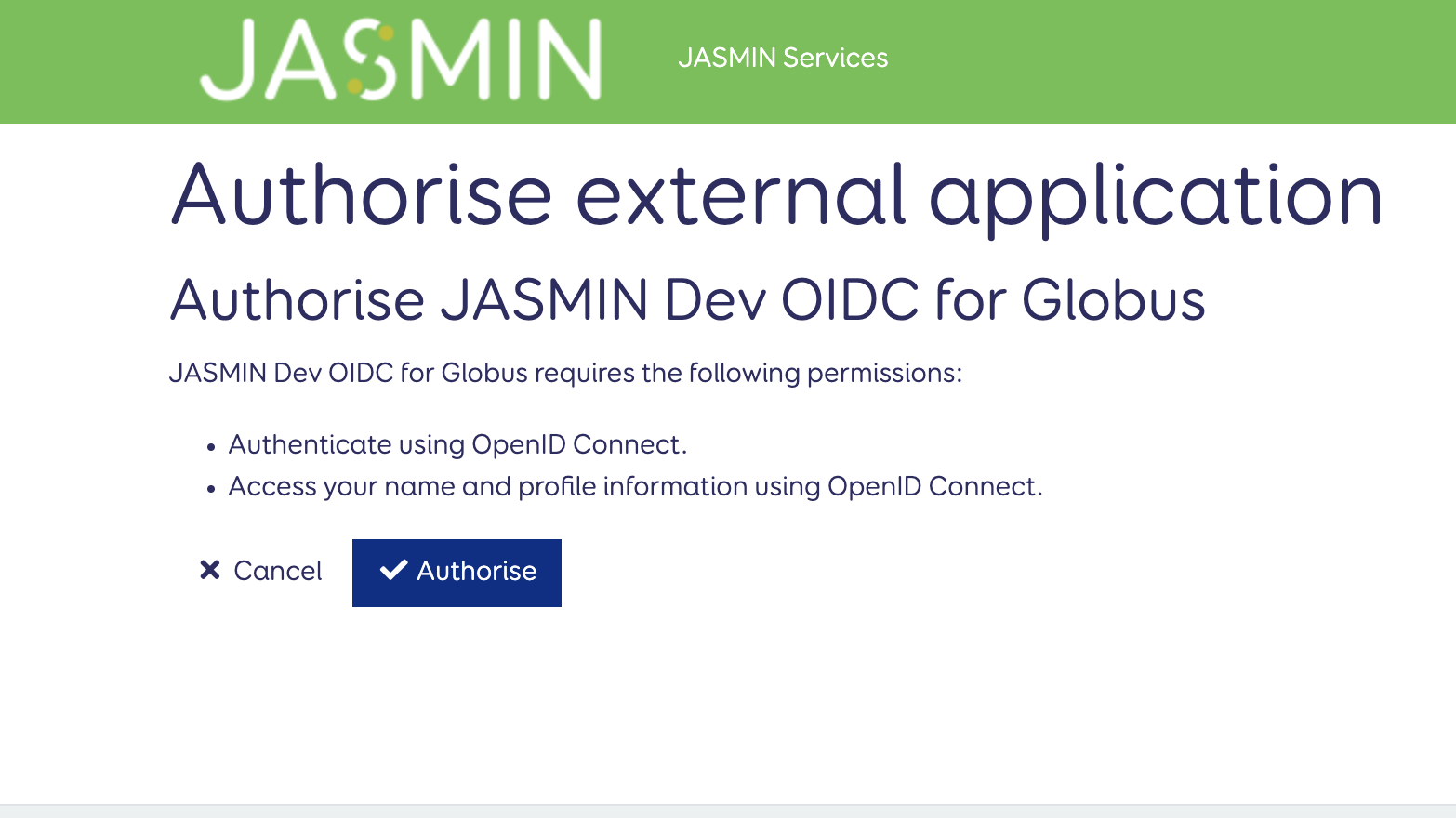
6. You are taken to a page on the JASMIN Accounts portal, where you are invited to “Authorise” the external application to authenticate and access your essential account information.
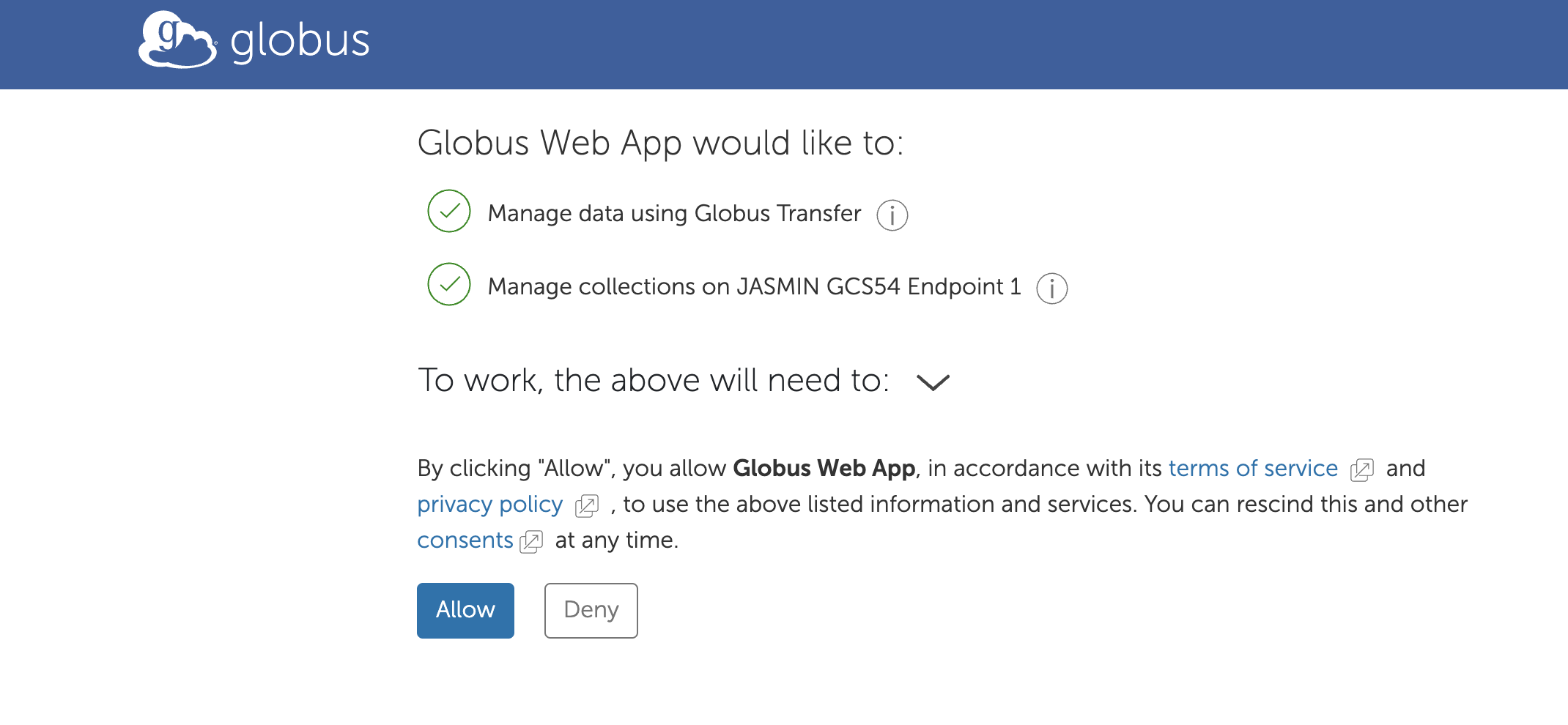
7. If successful, you are taken back to the Globus web app, where you are invited to “Allow” the app to use the listed information and services.
8. The directory listing of your home directory should now appear in the transfer pane.
9. Try navigating to another collection known to you (previously known as endpoint) in the other pane and transferring some data. If you have Globus Connect Personal running locally, you should be able to transfer files to/from that.
List your home directory using the command-line interface (CLI)
This is covered as one of the examples in our Globus command-line interface article.
Where to/from?
Don’t forget that to actually transfer data to/from JASMIN (e.g. step 8, above), you’ll need another
collection somewhere else. If you’re transferring data from ARCHER2, you can use their
ARCHER2 filesystems collection (id: 3e90d018-0d05-461a-bbaf-aab605283d21)
If not, unless your institution runs a Globus collection, you’ll need to install a small piece of software called Globus Connect Personal on a machine at that end that is able to read/write the data that you want to transfer. A good idea is to try this on your own desktop/laptop first.
Our help doc guides you through how to do this and some examples of how to use it. Versions available for Windows, Mac and Linux.
Troubleshooting
Transfer task reports errors while in progress
You do not normally need to re-submit a Globus task.
Errors while in progress can happen, but Globus will automatically retry a transfer several times before giving up. If it’s actually failed, it will report the final status as such. You can check on the progress of a transfer task that has got stuck, if needed, either in the web interface, or by obtaining the task id and using the command globus task show [OPTIONS] TASK_ID using the id of your task.
(see reference)
.
If necessary, you can cancel a task with globus task cancel [OPTIONS] TASK_ID.
(see reference)
Other problems with command-line interface (CLI) in terminal environment
Please see the troubleshooting section in the Globus command line interface article.